
The generator
Schema markup in a minute
This free schema markup generator writes the JSON-LD code that tells Google and other search engines what your page is about: your business, an article, a product, an event, a breadcrumb trail, a person or an FAQ page. Pick the type, add your page address if you like, and copy the code. No signup.
With a page address, it reads the page first and fills the form from what is already there: the schema the page has, its title, description, main image, logo, phone link and social links. Every field it fills is marked, so you can see what came from your page and check it before you paste.
Every result opens with one plain line, such as Ready to paste or 1 thing to fix first, then coloured check tags and a one-line Fix or Improve row for each problem. Fields are labelled the way Google’s own documentation labels them: Required or Recommended.
The code updates as you type. Nothing you type in the form is sent to our server; only the page address is, so we can read it.
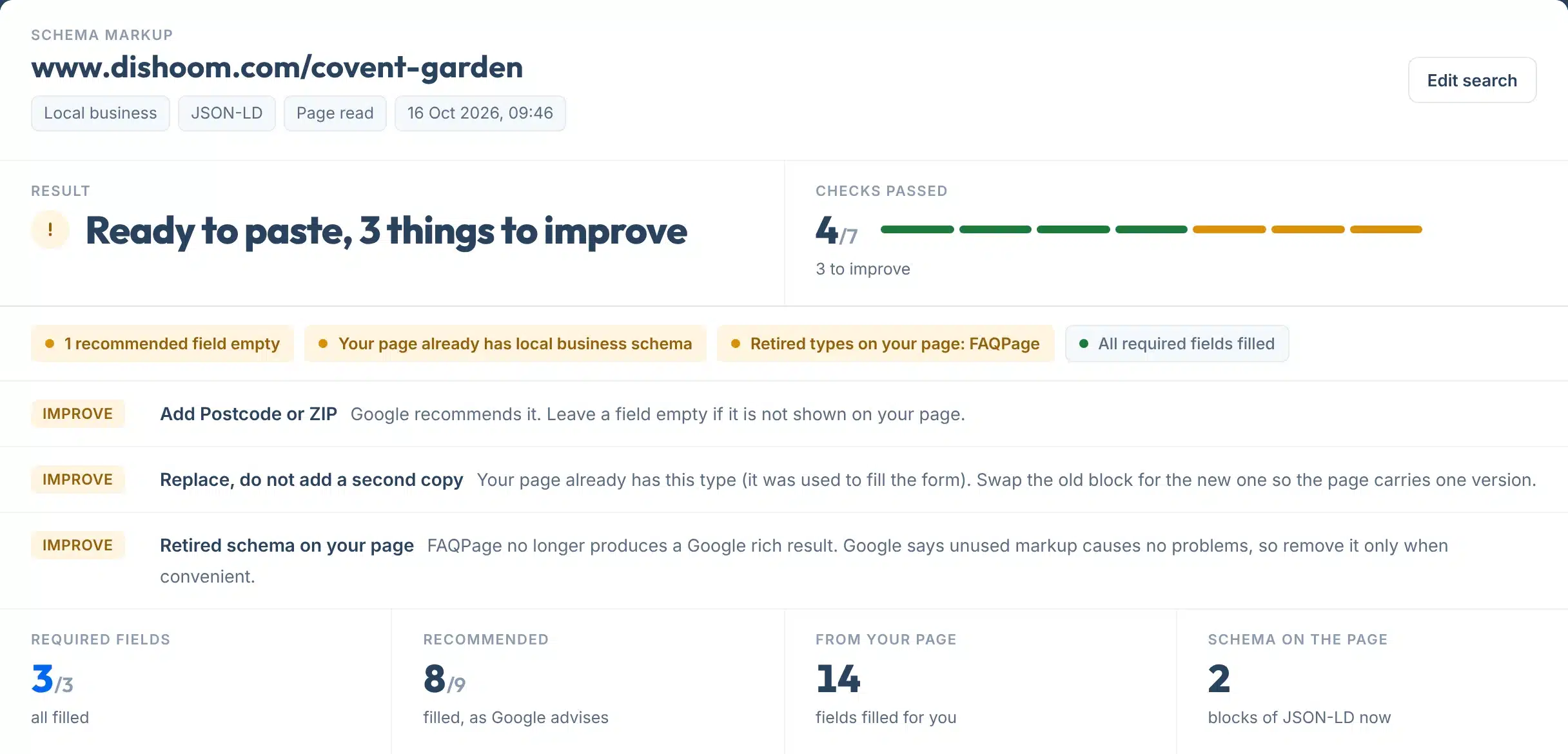
A live run for Dishoom Covent Garden: 14 fields filled from the restaurant schema already on the page, and the code ready to copy.
How to use it
How to create schema markup
One choice, one optional box, one button. Then fill what is missing.
- 1Choose the schema type
Pick what the page is about. A shop, office or restaurant page is a Local business; a blog post is an Article.
- 2Add your page address, or leave it empty
With an address such as yoursite.com/contact/ we read the page and fill the form. Leave it empty to start from a blank form.
- 3Press Generate my schema
The form, the live code and the checks appear right below. Reading a page takes a few seconds.
- 4Fill the red labels first, then the grey ones
Required fields are what Google needs. Recommended fields help, but leave any field empty if that detail is not shown on your page.
- 5Copy the code and test it
Press Copy code, paste it into the page, then run the live page through Google’s Rich Results Test.
Your result, explained
What each part of the result means
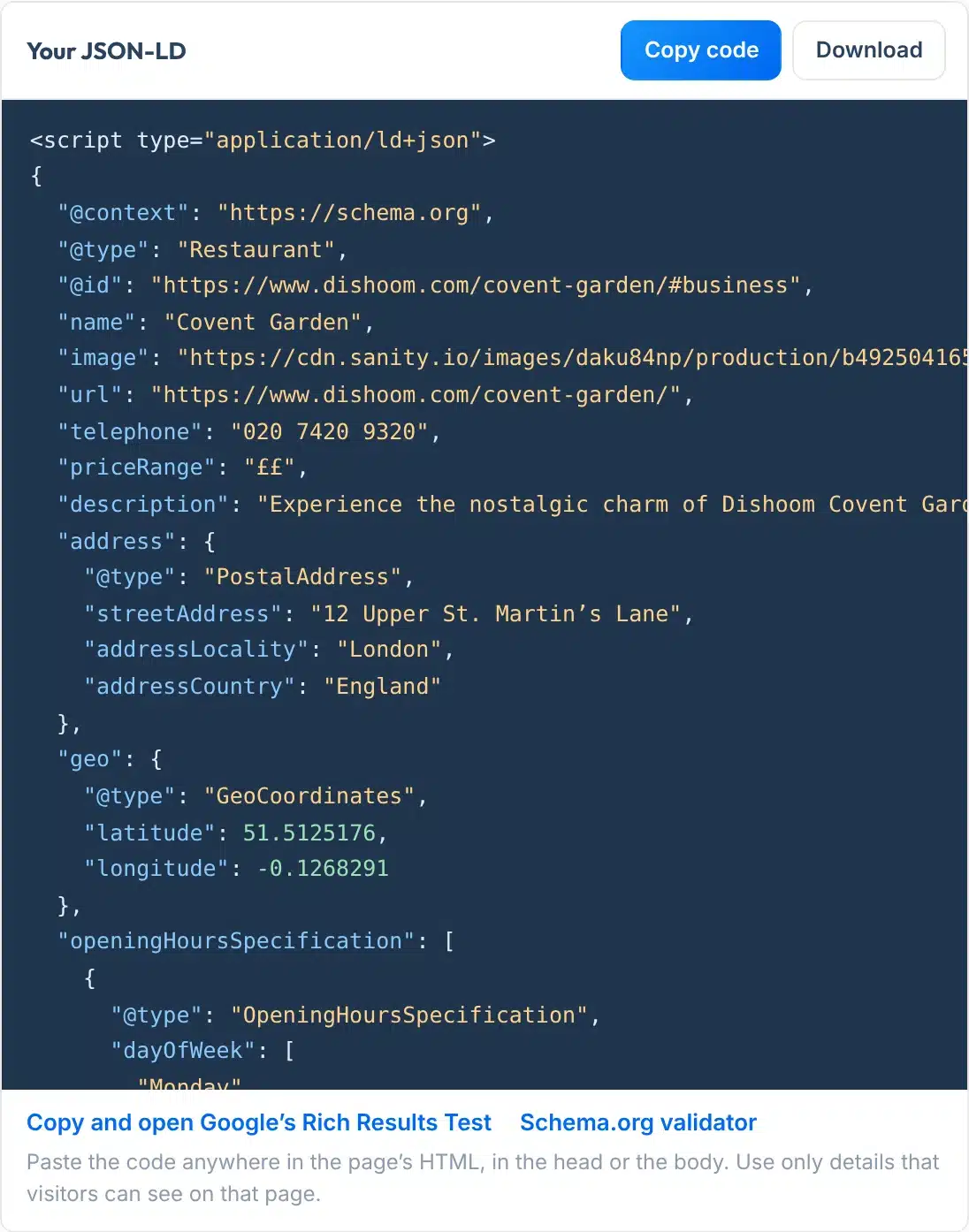
Part 1 is the form and the code, Part 2 shows the schema your page has now, and Part 3 says where to paste it. Here is a real Part 1, numbered.
 123456
- 1Required
Google lists this field as required for the type. The result says what to fix until every one is filled.
- 2Recommended
Google recommends it. Fill it when the detail is on your page; an empty one is never counted as an error.
- 3From your page
Filled from the schema already on your page or from the page itself. The field turns light blue; check it before you paste.
- 4Copy code and Download
Copy the code with its script tags, or download it as a file to send to whoever edits your site.
- 5Your JSON-LD
The finished code, rebuilt each time you type. Empty fields are left out, so the code never carries blank values.
- 6Google’s checklist
Every required and recommended field for the type, marked Filled or Empty, so nothing is missed.
Labels:
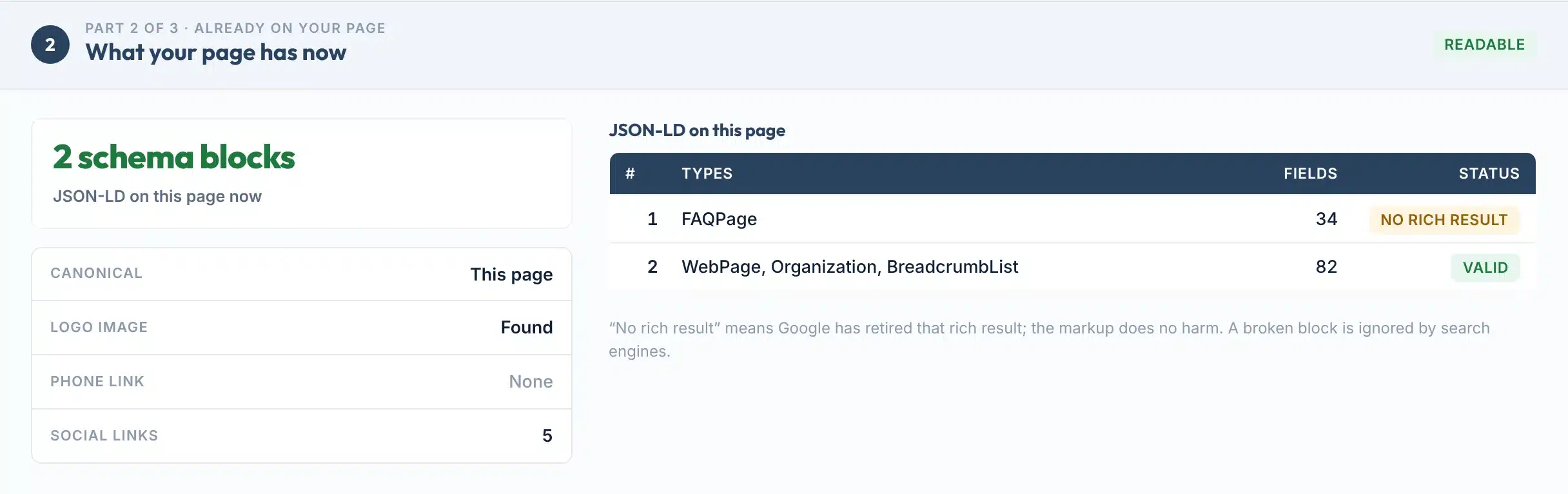
Part 2, what your page has now: every JSON-LD block found in the page’s HTML, with its types, the number of fields and a status. Broken JSON means search engines cannot read the block at all. No rich result marks a type Google has retired, such as FAQPage or HowTo. If the page already has the type you chose, the result tells you to replace that block rather than add a second one.
Coverage
Features
- Fills the form from your pageReads the schema your page already has, plus its title, description, image, logo, phone link and social links, and marks each value it used.
- Checks what is there nowLists every JSON-LD block on the page and flags broken code, retired types and a second copy of the type you are making.
- Google’s labels, not guessesRequired and Recommended follow Google Search Central’s documentation for each type, checked in October 2026.
- Format checks as you typeWeb addresses, dates, prices, currency codes, map coordinates, review counts and opening hours are checked before you copy.
- Opening hours made simpleTick the days you are open and set the times; the code groups days with the same hours, the way Google’s examples do.
- Share link and one-page PDFCopy a link that reopens your form with everything you typed, or save the result as a one-page PDF.
Types: Local business (with 35 specific kinds such as Plumber, Dentist, Restaurant and Hair salon), Organization, Article, Product, Event, Breadcrumb, Person profile and FAQ page.

The rules
What Google asks for, type by type
This is what Google Search Central lists for each type the generator makes. Organization and Article have no required fields at all; the generator marks the ones that make them useful as Key.
| Type | Required | Recommended | Google doc |
|---|---|---|---|
| Local business | name, address | telephone, url, geo, openingHoursSpecification, priceRange | LocalBusiness |
| Organization | None | name, url, logo (at least 112 × 112 px), sameAs, address, telephone | Organization |
| Article | None | headline, image, datePublished, dateModified, author | Article |
| Product | name, plus offers or a rating or a review | offers, aggregateRating, review | Product snippet |
| Event | name, startDate, location with its address | endDate, eventStatus, image, description, offers, organizer, performer | Event |
| Breadcrumb | itemListElement, each with name, item and position | None | Breadcrumb |
| Person profile | mainEntity with a name | dateModified, alternateName, description, image, sameAs | ProfilePage |
| FAQ page | Rich result stopped on 7 May 2026 | Still valid schema.org markup, shown nowhere in Google Search | Google changelog |
Valid does not mean shown
Google says it “does not guarantee that your structured data will show up in search results, even if your page is marked up correctly according to the Rich Results Test.” Markup makes a page eligible for a feature; it is not a ranking boost (Google’s structured data guidelines).
Only mark up what visitors can see
“Don’t mark up content that is not visible to readers of the page,” and the data “must be a true representation of the page content” (Google). That is why the generator never adds a rating, price or address you did not type or that your page does not show.
FAQ and HowTo are retired
Google limited FAQ rich results to “well-known, authoritative government and health websites” in August 2023, stopped HowTo results that September, and switched FAQ results off for everyone on 7 May 2026 (Google, 2023, Google, 2026). Google also says unused markup “does not cause problems for Search”, so there is no rush to remove it.
AI answers need no special schema
For AI Overviews and AI Mode, Google says “there’s also no special schema.org structured data that you need to add”, while its 2026 guide calls structured data “a good idea” for rich results (AI features, AI optimization guide). Bing says structured data is one of the clues it uses to understand a page (Bing).
Limits
What this tool can’t do
Knowing the limits helps you trust the code you do get.
Use it to
- Write correct JSON-LD for the eight most used page types
- See what schema a page carries now, and whether any of it is broken
- Start from what your page already says instead of a blank form
- Check required fields and formats before you paste
- Send a link or a PDF to the person who edits your site
It won’t
- Publish the code for you. You paste it into your page or your site builder. Part 3 of the result shows where on WordPress, Shopify, Wix, Squarespace, Webflow and Google Tag Manager.
- See schema added by JavaScript. We read the page’s HTML as it arrives. Markup injected later by a plugin script or tag manager will not show; test the live page in Google’s Rich Results Test, which runs scripts.
- Read a blocked page. Some firewalls refuse automated visits. The result then says so and you fill the form by hand; nothing else changes.
- Know what your page shows. It cannot judge whether each value is visible on your page. That part is yours: only keep what visitors can see.
- Build several types in one block. One type per run. For a second type, run it again and paste both blocks; a page can carry more than one.
- Promise a rich result. Google decides what to show. Valid markup makes a page eligible, nothing more.
Next steps
What to do with your result
Rich results can earn more clicks. Google’s own case studies report that pages shown as rich results had an 82% higher click-through rate for Nestlé, Food Network saw a 35% increase in visits after enabling search features on 80% of its pages, and Rotten Tomatoes measured a 25% higher click-through rate on 100,000 pages with structured data (Google Search Central).
These are company-reported results chosen by Google, not an average you should expect. Most sites still skip it: the HTTP Archive found JSON-LD on 41% of pages in 2024, up from 34% in 2022, and LocalBusiness markup on just 3.97% of mobile pages (Web Almanac 2024).
Results reported in Google’s case studies
Source: Google Search Central, Introduction to structured data. Each figure is a different measure from one company.
Your next step, by result
Fill the red-labelled fields first. Google cannot use the markup for that type until they are there.
A block search engines cannot read. Replace it with the code from the generator, or delete it, then test the page again.
Swap the old block for the new one, or turn off the plugin setting that adds it, so the page carries one version.
FAQPage and HowTo no longer show in Google. They do no harm; remove them when you next edit the page.
Paste it, test the live page in the Rich Results Test, then ask Google to recrawl it in Search Console.
Make sure the same name, address and phone appear on your Google Business Profile and across the web.
Want schema across your whole site, done and tested?
Our team adds and fixes structured data for local businesses in the US and UK, as part of technical and AI SEO.
FAQs
FAQs
What is a schema markup generator?
A schema markup generator writes structured data code for you. You fill in a short form, such as your business name, address and opening hours, and it produces JSON-LD that you paste into your page. Search engines read that code to understand the page and, when they choose to, show extra details like breadcrumbs or event dates in results.
How do I create schema markup for my website?
Choose the type in the tool above, add your page address to fill the form from the page, and press Generate my schema. Fill any field labelled Required, copy the code with Copy code, and paste it into the page’s HTML or your site builder’s custom code box. Then test the live page in Google’s Rich Results Test.
Is this schema generator free?
Yes. It is free with no signup. You can generate as much code as you like. Reading a page to fill the form is limited to 40 page reads a day per visitor, and a repeat read of the same page within 10 minutes does not count. Nothing you type in the form is sent to our server.
What is JSON-LD and why does Google recommend it?
JSON-LD is structured data written as a small block of code inside a script tag, separate from your visible HTML. Google says it recommends JSON-LD where your site allows it because it is the easiest format to add and maintain at scale and less prone to user errors. Microdata and RDFa work too.
Where do I paste the JSON-LD code?
Anywhere in the page’s HTML. Google reads JSON-LD in the head or the body, and also when it is added by JavaScript. On WordPress use a header code plugin or your SEO plugin’s custom schema box; on Shopify, theme.liquid before the closing head tag; on Wix, the page’s Advanced SEO settings.
Which schema type should I use for a local business?
Use Local business on the page that shows your address, usually the home or contact page, and pick the most specific kind, such as Plumber or Dentist. Google asks for the most specific LocalBusiness sub-type possible. Name and address are required; phone, website, map position and opening hours are recommended.
Does schema markup help SEO and rankings?
It is not a ranking boost. Google says structured data makes a page eligible for search features but never guarantees one. Its case studies report higher click rates where rich results appear, such as 25% for Rotten Tomatoes. For AI Overviews, Google says no special schema is needed, though it still calls structured data a good idea.
Should I still add FAQ schema?
Only if it helps another use. Google stopped showing FAQ rich results for all sites on 7 May 2026, and HowTo results in 2023. FAQPage is still valid schema.org markup and Google says unused markup causes no problems, so existing blocks can stay. Keep every answer visible on the page.
Can I add more than one schema type to a page?
Yes. A page can carry several blocks, for example Organization on every page plus Article on a blog post. Run the generator once per type and paste each block. Avoid two different blocks of the same type on one page; the result warns you when your page already has the type you are making.
How do I test my schema markup?
Paste the code into your live page, then enter the page address in Google’s Rich Results Test, which shows which features the page is eligible for and any errors. The Schema.org validator checks the markup against the full vocabulary. Use the Copy and open link under the code to jump straight there.
Sources
- Google Search CentralIntroduction to structured data: JSON-LD recommended, case studies
- Google Search CentralGeneral structured data guidelines: no guarantee, visible content only
- Google Search CentralLocalBusiness structured data: required and recommended properties
- Google Search CentralOrganization, Article, Product snippet, Event, Breadcrumb and ProfilePage docs
- Google Search Central BlogChanges to HowTo and FAQ rich results (Aug and Sep 2023)
- Google Search CentralDocumentation changelog: FAQ rich result deprecated, 7 May 2026
- Google Search Central BlogSimplifying the search results page (June 2025)
- Google Search CentralAI features and your website; AI optimization guide (2026)
- Bing Webmaster BlogJSON-LD support in Bing Webmaster Tools (2018)
- HTTP ArchiveWeb Almanac 2024, Structured Data chapter
- GoogleRich Results Test
- Schema.orgSchema Markup Validator
More free tools
More free SEO tools
Once your schema is in place, these check the rest of the page.
Read the guides: Local SEO citations explained and How to check your keyword rankings.