
The report
See your Google Maps ranking from every part of your area
This free local rank grid checks where your business appears on Google Maps for one search, from 9 or 25 points spread around your address. Each point is a real Google Maps search made from that spot. No signup.
Google Maps does not show one ranking. Someone searching from your street sees a different list from someone two kilometres away. A normal rank check shows one of those lists. The grid shows all of them at once.
Every report gives you four things: your map grid, coloured by rank; who wins where, the business in first place at every point where you miss the top 3; the competitors who show up most across your area; and why they win, your profile compared with theirs, with clear next steps.
Click any circle to see the full top 20 from that spot, or switch the grid to any competitor to see where they are strong. Both come from the same scan, at no extra cost.
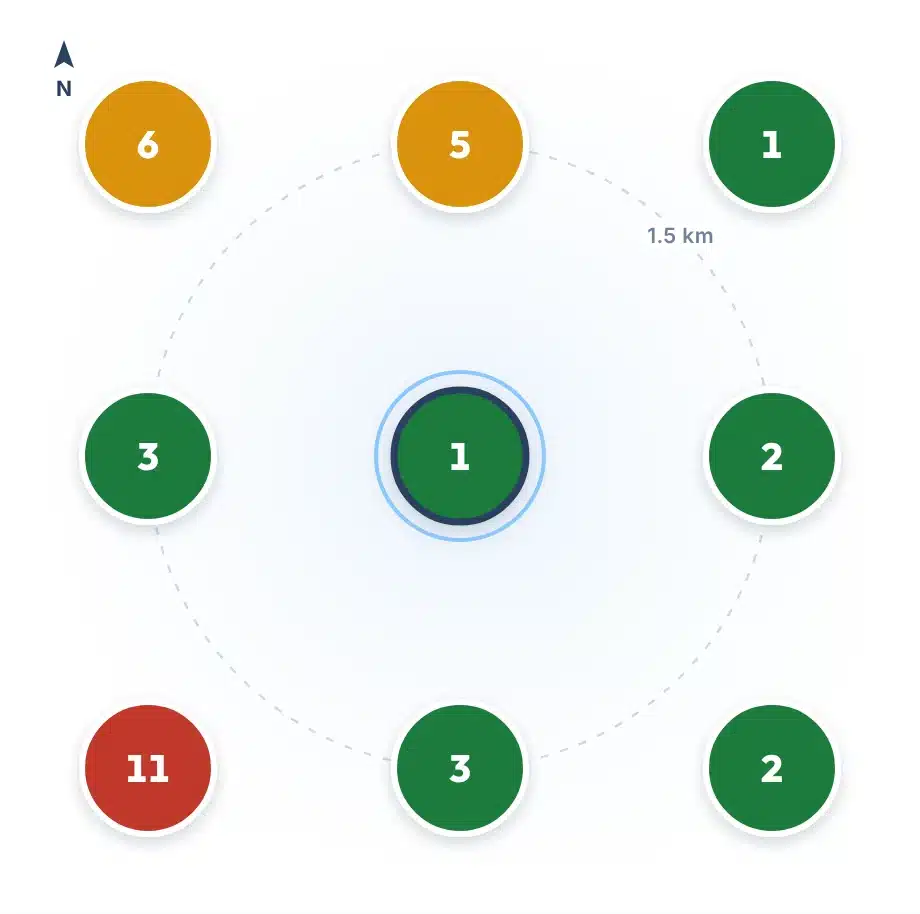
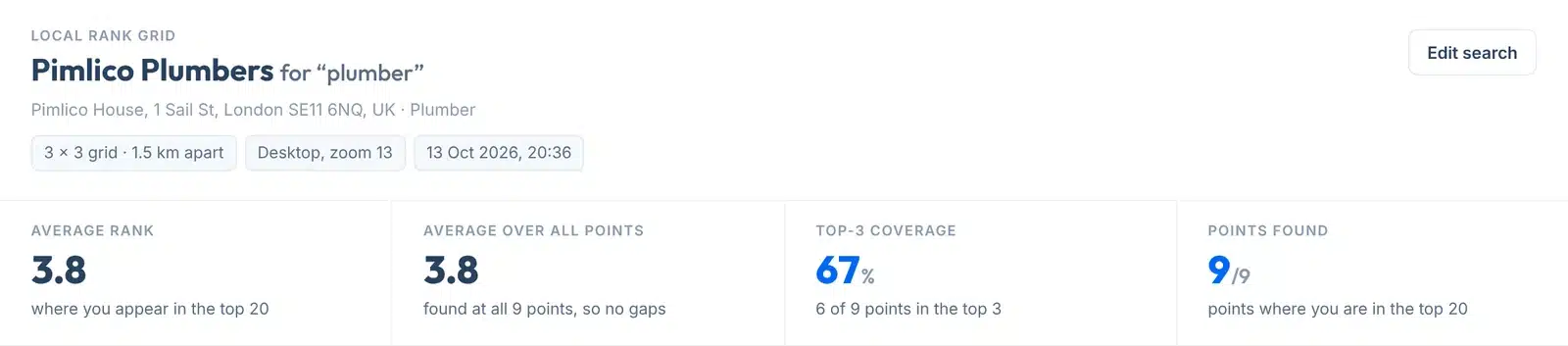
A live grid for “plumber” around a London plumbing firm: #1 at its own address, top 3 at 6 of 9 points, #11 at its weakest spot.
How to use it
How to check your local rankings
Three boxes, two choices, one button.
- 1Type your business name
Use the name exactly as it shows on Google Maps, for example Smith & Sons Plumbing.
- 2Add your town or postcode
This helps us find the right listing, for example Leeds or SW1A 1AA. We show the business we found, so you can check it is yours. If it is not, pick yours from Not this business?
- 3Choose the search to check
Type what a customer would type into Google Maps, for example plumber or emergency plumber. One search per scan.
- 4Pick the grid and the spacing
3 × 3 checks 9 points. 5 × 5 checks 25 points when it is available. Spacing sets the distance between points: 0.5, 1, 1.5 or 3 km.
- 5Press Check my map rankings
The grid appears below the form in about half a minute. Copy the link to share it, or save it as a one-page PDF.
Your report, explained
What each part of the report means
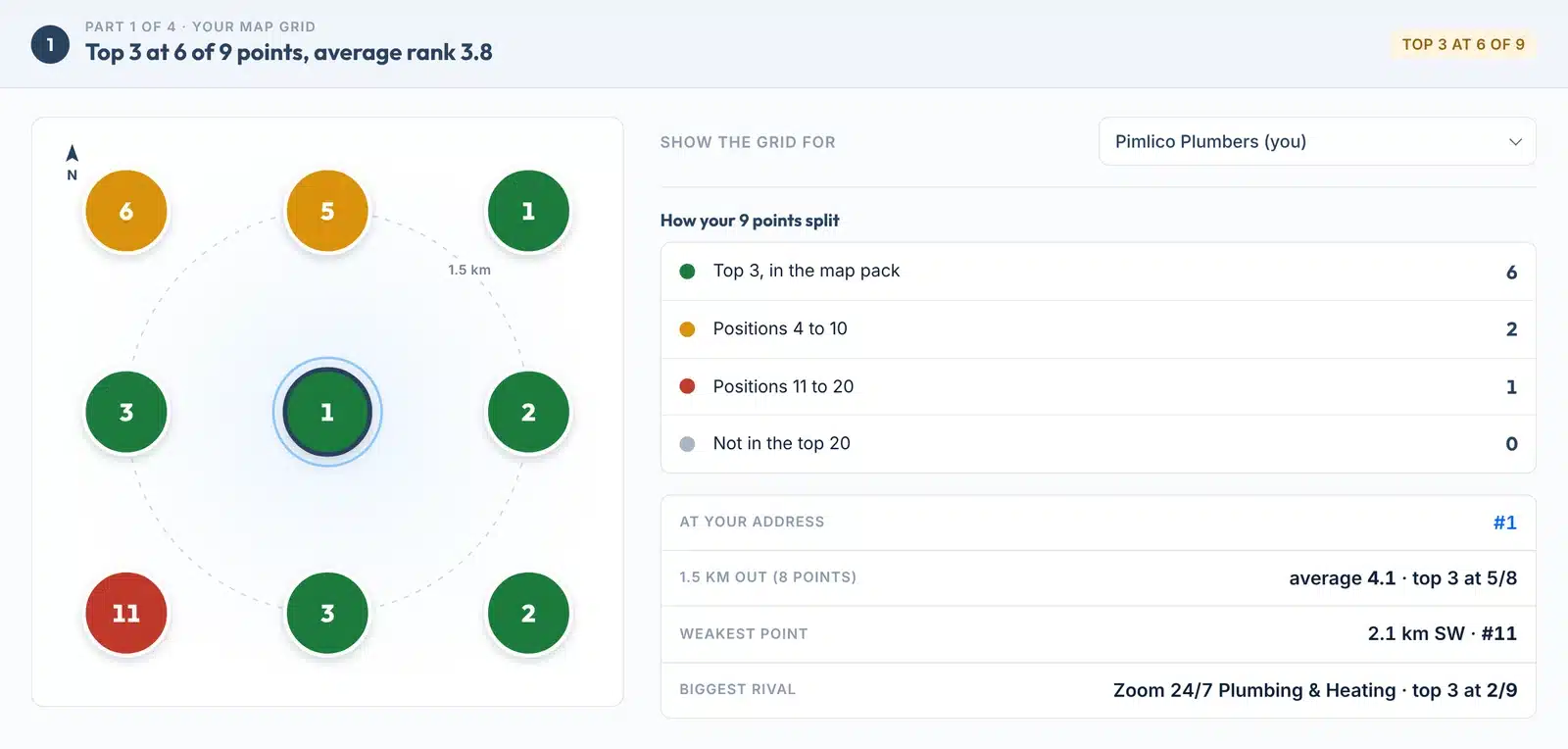
Part 1 is your map grid. Here is a real one, with each part numbered.
 12345
12345- 1The answer in one line
How many points put you in the top 3, and your average rank.
- 2Show the grid for
Switch the grid to any competitor from the scan. The circles and the split recolour to show where that business ranks.
- 3The grid
Each circle is one Google Maps search from that spot, and the number is your position there. The ringed circle is your address; the dashed ring shows the distance. Hover a circle to see who is #1 there, or click it for the full top 20.
- 4How your points split
How many points fall in each colour band, so you see the pattern without counting circles.
- 5Your key positions
Your rank at your address, your average on the ring further out, your weakest point and your biggest rival. A big gap between your address and the ring shows how quickly you fade with distance.
Colours on the grid:
The four numbers at the top
- Average rank
Your average position at the points where you are in the top 20.
- Average over all points
The same, but every point where you are not in the top 20 counts as 21. This is the fairer number when you are missing from part of the grid.
- Top-3 coverage
The share of points where you are in the map pack, the three results Google shows first.
- Points found
How many points show you anywhere in the top 20.
Under every report: copy a link to the result, or save it as a one-page PDF. Both show when it was checked.

Parts 2 and 3 of the report
Who takes the searches you miss
A rank on its own does not tell you what to do. Knowing who is above you, and why, does.
Part 2, Who wins where, lists every point where you are not in the top 3. For each one it shows your position, the business in first place there, its star rating and review count, and how far that business is from the point. A dash means Google gave no location for that business, which is common for businesses that hide their address.
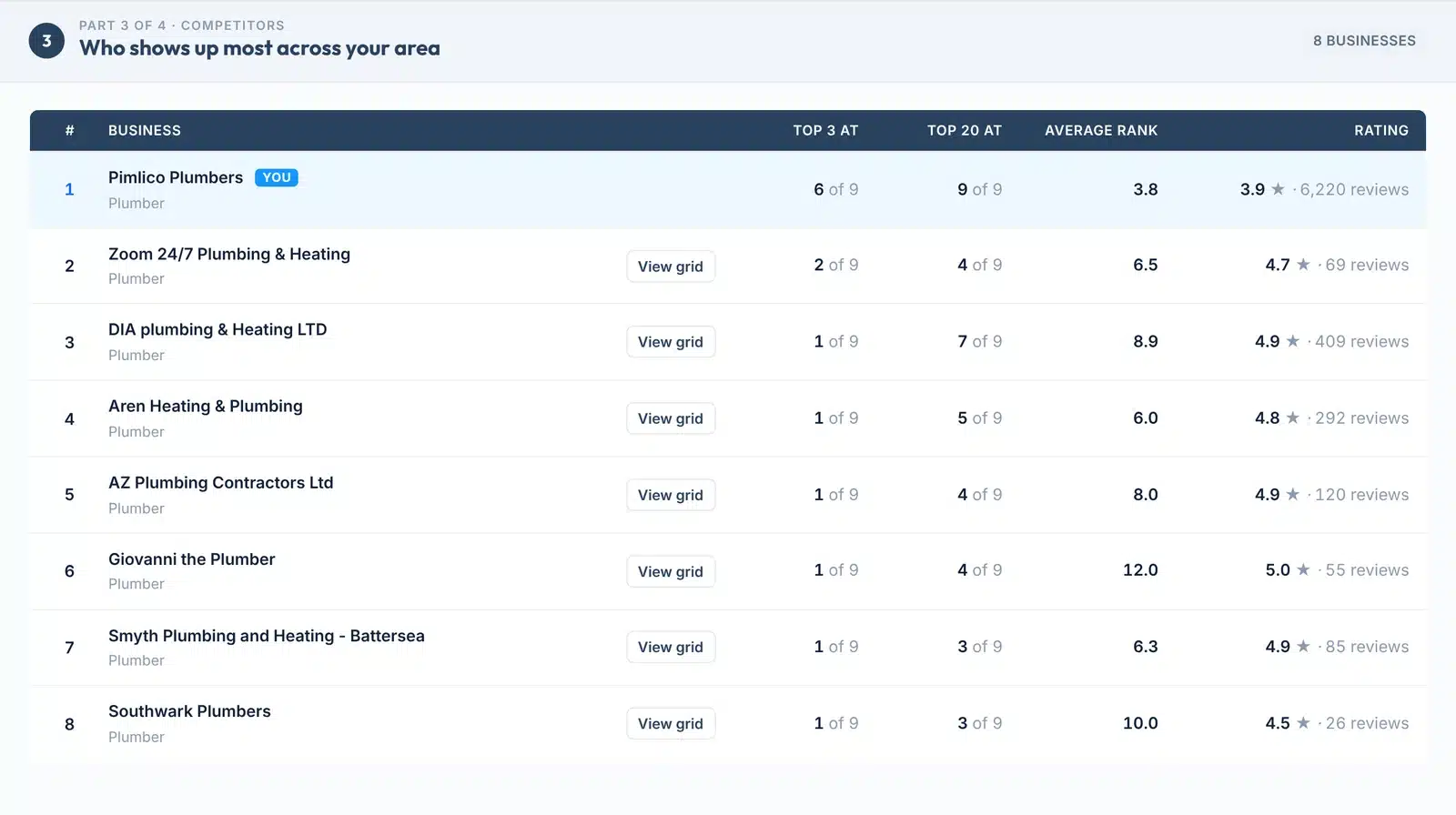
Part 3, Competitors, ranks the businesses that appear most across the whole grid: how many points put them in the top 3, how many show them anywhere in the top 20, their average position and their rating. Your own row is marked You, so you can see where you sit.
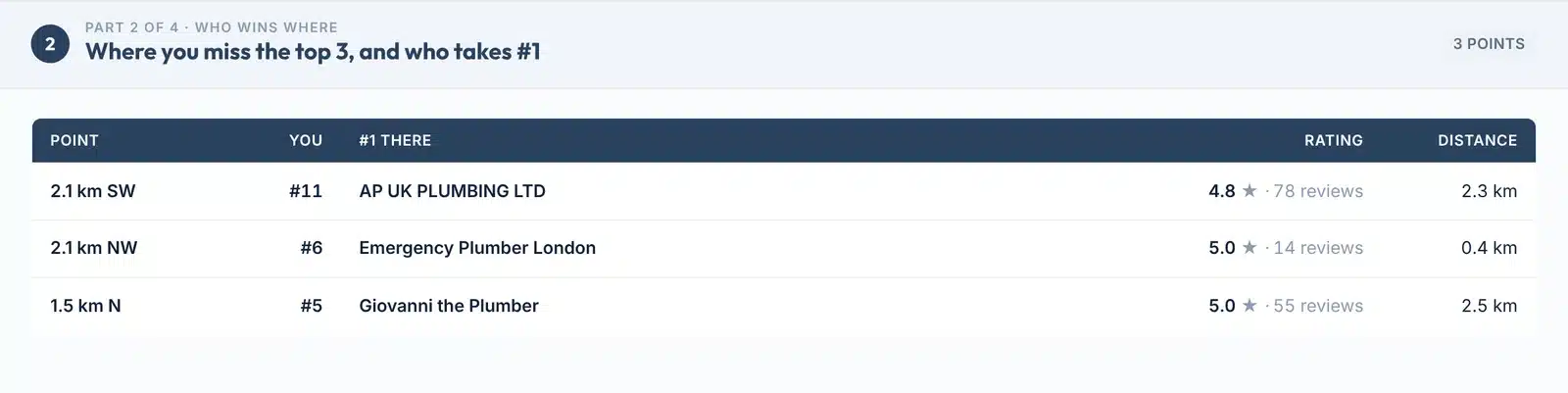
At 2.1 km south-west the firm is #11, and the #1 there is a business 2.3 km from that point with a 4.8 rating.
Dig deeper, free
See the full top 20 at any point, or any rival’s grid
Every scan already holds the top 20 from every point, so you can explore it without running another check.
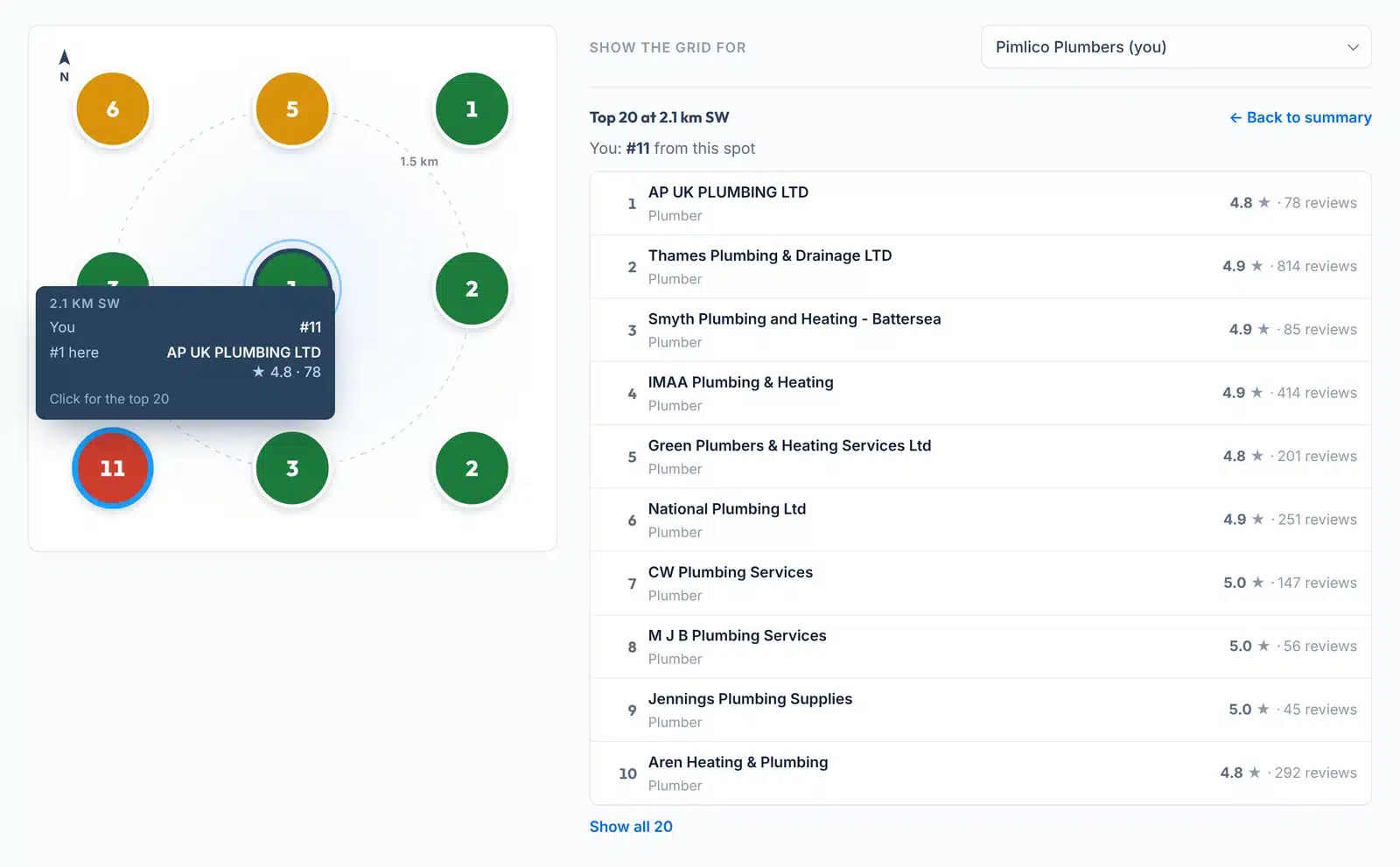
Click any circle to see the 20 businesses Google shows from that spot, with ratings, reviews and main categories. Profiles Google marks as not claimed are flagged.
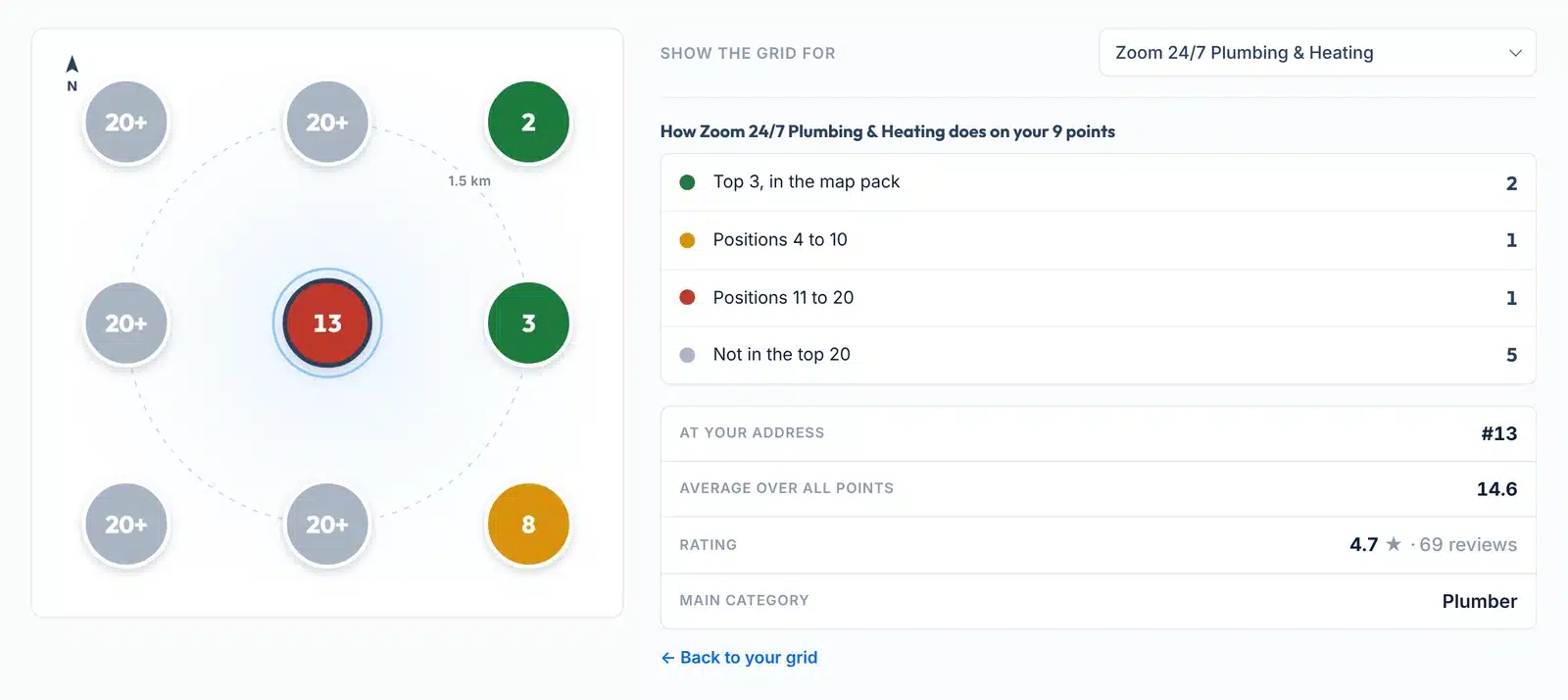
Show the grid for a competitor from the menu next to the grid, or press View grid in the competitors table. You see where they are strong and where you can take ground.
Most paid grid tools charge extra credits for competitor grids. Here they come from the same scan.
Part 4 of the report
Why the top 3 win, and what to do next
Part 4 compares your profile with the businesses that take the top 3 most often, then turns the gaps into steps.
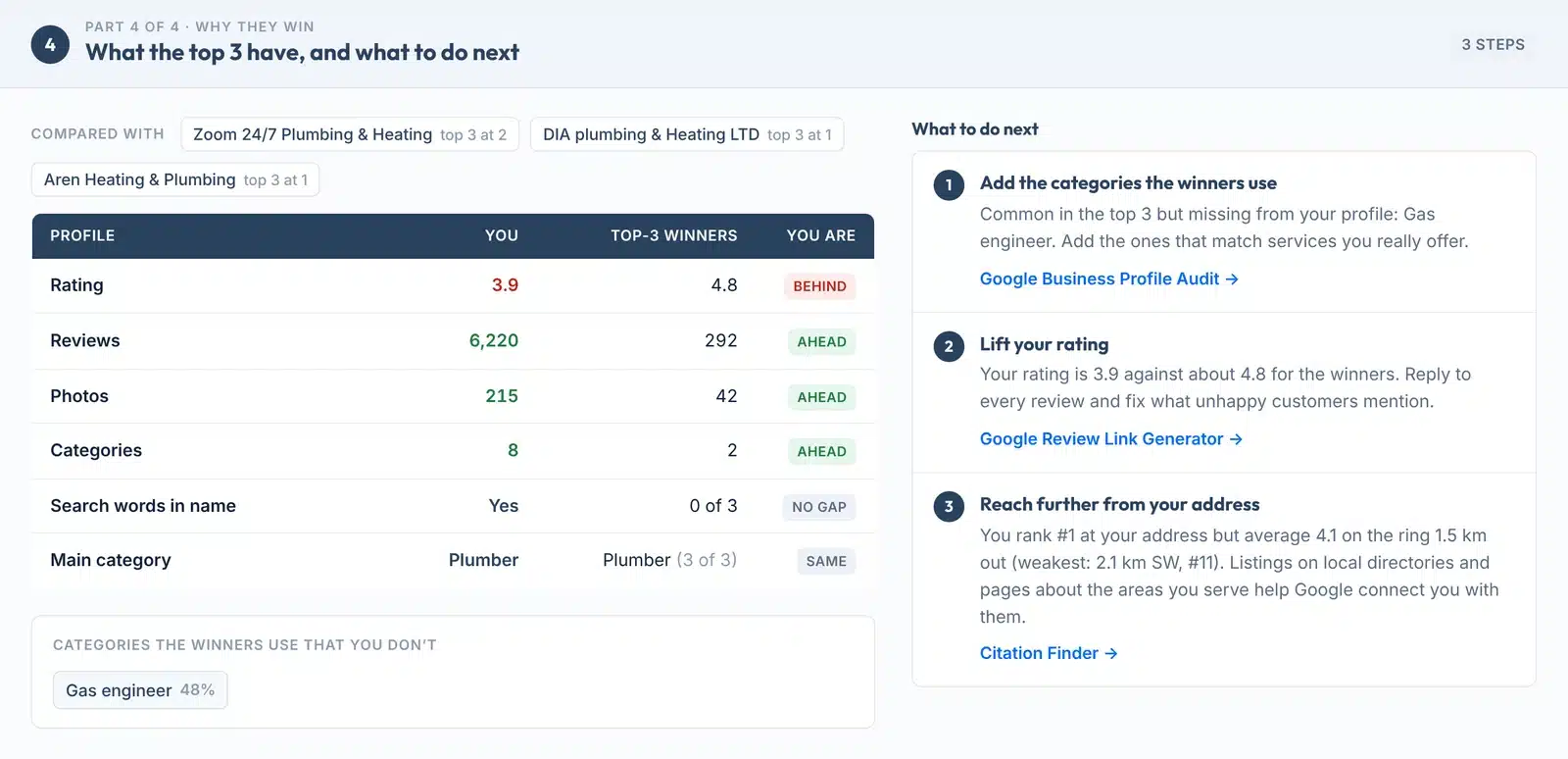
What is compared
Your rating, review count, photos and number of categories against the middle value of the top-3 winners, plus whether your main category matches theirs and whether their names contain the search words. Categories the winners use that you don’t are listed with how often they appear in the top 3.
How the steps are chosen
Each step comes from a gap in this scan, most useful first: a missing category, fewer reviews, a lower rating, fading with distance or too few photos. Add a category only if it truly describes your business; Google’s guidelines ask for accurate details.
How Google Maps ranks businesses
Why your rank changes across town
Google picks local results for each searcher, and where that searcher is matters.
Relevance, distance and how well known you are
Google’s help page on local ranking says results are based mainly on relevance, distance and how well known a business is, which it now calls popularity (Google Business Profile Help). Distance is the one that changes from point to point, which is why one business can be #1 on its own street and #8 a few kilometres away. Our guide to the local SEO heat map goes deeper.
Where the searcher is
Google uses the searcher’s location to pick local results. In its words, “If a customer doesn’t share where they are, Google uses what it knows about their location” (Google). Its search help adds that results also depend on context such as language and device (Google Search Help).
Reviews count
Google says “More reviews and positive ratings can help your business’s local ranking” (Google). The ratings and review counts in Parts 2 and 3 show how you compare with the businesses above you.
No shortcuts
Google is clear: “There’s no way to request or pay for a better local ranking on Google.” (Google). Its guidelines also ask for your real-world business name and say service-area businesses should hide their address (Google Business Profile guidelines).
Settings
Which grid and spacing to choose
Match the grid to the area your customers really come from.
| Spacing | Best for | Area covered |
|---|---|---|
| 0.5 km | Dense city centres, where rivals sit on every street | 1 km wide (3 × 3), 2 km (5 × 5) |
| 1 km | Busy towns and inner suburbs | 2 km wide (3 × 3), 4 km (5 × 5) |
| 1.5 km | Most towns. The default | 3 km wide (3 × 3), 6 km (5 × 5) |
| 3 km | Rural areas and businesses that travel to customers | 6 km wide (3 × 3), 12 km (5 × 5) |
Start with 3 × 3 at 1.5 km. If every point is green, widen the spacing to see where you start to drop. If most points are 20+, tighten it to see how far you reach from your door. Change one setting at a time, so two scans can be compared.
Limits
What this tool can’t show
If your own phone shows something different, one of these is usually why.
Use it to
- See your Google Maps position from 9 or 25 places around your business
- Find the parts of your area where you drop out of the top 3
- See the full top 20 at any point, and any rival’s grid, from the same scan
- Compare your rating, reviews, photos and categories with the businesses that win
- Get plain next steps, and see what changed since your last check
- Share a dated grid with a client or your team, or save it as a PDF
It won’t show
- A live map. The grid is a diagram, not a map. North is up and the distances are real, but streets are not drawn.
- Mobile results. Every point is searched on desktop at zoom 13. A phone in the same spot can see a slightly different list.
- Tomorrow’s results. Rankings move. A grid is a snapshot from the time shown on the report.
- Hidden addresses. Service-area businesses that hide their address may not show in map results at all, so they can be harder to find.
- Many searches at once. One search and one business per scan, and one new scan per visitor per day.
- Results past 20. We check the top 20 at each point. Anything lower shows as 20+.
- Ads. Sponsored map listings are skipped, so positions count only the normal results.
Next steps
What to do with your grid
Your next step, by result
You lead the whole grid. Widen the spacing to see where your reach ends, and check a second search customers use.
The usual pattern. Distance is working against you at the edges. More reviews and a complete profile help you hold on further from your door.
Something other than distance is holding you back. Compare your category, rating and reviews with the #1 business in Part 2.
Check that the search matches your main category, and that your name, address and phone are the same everywhere online.
Ask happy customers for a review with a direct link that opens the review box on your listing.
Look at who wins there in Part 2. A rival based on that side of town is common. Local listings and pages that mention that area can help.
Want to win more of your map?
Our team grows Google Maps visibility for local businesses in the US and UK, one area at a time.
FAQs
FAQs
What is a local rank grid?
A local rank grid shows where a business appears on Google Maps for one search, checked from many points around its address. Each point is a separate search made from that spot, and the result is shown as a coloured grid. It shows how your visibility changes across your area, which one rank check cannot.
How do I check my Google Maps ranking from different locations?
Type your business name, your town or postcode and the search you want to check, then press Check my map rankings. The tool searches Google Maps from 9 or 25 points around your business and shows your position at each one. No signup is needed.
Why does my Google Maps ranking change depending on location?
Google says local results are based mainly on relevance, distance and how well known a business is. Distance changes with every searcher, so a business near one searcher can rank above you there, even if you lead on your own street. This is why the grid often turns from green to amber as it moves away from your address.
What do the numbers in the grid mean?
Each number is your position in the Google Maps list for that search, made from that point. 1 to 3 means you are in the map pack, the three results shown first. 20+ means you are not in the top 20 from that spot. A dash means that point could not be checked.
What is average rank and average over all points?
Average rank is your average position at the points where you appear in the top 20. Average over all points counts every point where you are missing as 21, so a business that only shows up near its door does not look better than it is.
Can I see a competitor's grid?
Yes. After a scan, pick any competitor in the Show the grid for menu, or press View grid in the competitors table. The grid recolours to show where that business ranks at every point. It uses the same scan, so it is free and does not count as a new check.
Can I see who ranks at each point?
Yes. Click any circle on the grid to see the top 20 businesses Google shows from that spot, with their ratings, review counts and main categories. Your own listing is highlighted, and profiles Google marks as not claimed are flagged.
What grid size and spacing should I use?
Start with 3 by 3 at 1.5 km, which covers most towns. Use 0.5 or 1 km in a busy city centre and 3 km in rural areas or if you travel to customers. Change one setting at a time so you can compare two scans fairly.
Why is my result different from what I see on my phone?
Your phone searches from where you stand, on mobile, and may use your past activity. This tool searches on desktop from fixed points at zoom 13. Rankings also change during the day, so two checks a few hours apart can differ slightly.
How can I rank higher on Google Maps?
Google says there is no way to request or pay for a better local ranking. It does say more reviews and positive ratings can help. Make your profile complete and accurate, choose the right main category, keep your name, address and phone the same everywhere, and keep earning reviews.
Is this local rank grid free?
Yes. It is free and needs no signup. Each visitor gets one new scan per day, because every scan runs up to 25 live Google Maps searches. The same scan can be reopened for 24 hours, and anyone with your link can see it.
Does it work for service-area businesses?
Yes, if your listing appears in Google Maps results. Businesses that hide their address may show less often in map results, so a mostly empty grid is not always a ranking problem. The tool finds your listing through Google’s own business data first.
Sources
- Google Business Profile HelpHow to improve your local ranking on Google: relevance, distance and popularity, reviews, location
- Google Search HelpHow results are personalised by location, language and device
- Google Business Profile HelpGuidelines for representing your business on Google
- Google Maps PlatformService Specific Terms: how Places data can be shown
More free tools
More free local SEO tools
Found a weak spot on your grid? These help you fix it.
Read the guides: city pages SEO: which towns deserve their own page (plus a free city page brief PDF), is local SEO dead? why the map top 3 and ChatGPT pick different businesses, how to measure the benefits of local SEO, month by month, local keyword research: which keywords to track in the grid, the local SEO guide: how Maps, Google and AI rank you, how to rank every location of a multi-location business, do Google reviews help SEO, and how to get more, how long it takes to rank on Google, with real timelines, what a Google Business Profile actually gets you: 9 benefits with proof, How to read a local SEO heat map and fix the weak spots and how to optimize your Google Business Profile.